Convert files without leaving Finder
Select a file, press ⌥ F and choose a format. FileFlip converts it right on your Mac and saves the result next to the original.
Suggestions that fit the file
A photo from your iPhone gets JPEG first. A screen recording gets MP4. A podcast gets M4A. You see what each result will weigh before you convert, and you can type to find any other format.
Settings when you need them
Press Tab to set the quality, resize a photo or remove its location before you share it. The estimated size updates while you drag.
A whole folder at once
Select as many files as you like and convert them together. Progress moves to the menu bar, so you can close the panel and keep working.
Your original stays where it was
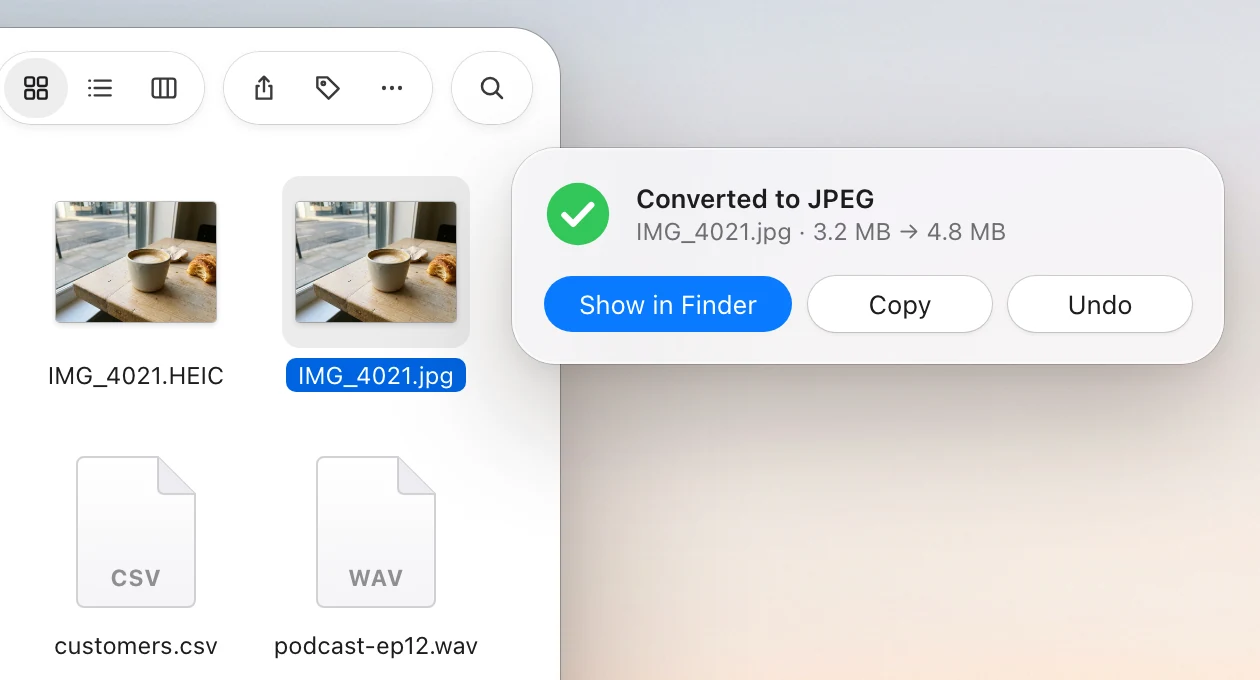
The new file appears next to the original with the same name. Changed your mind? Undo removes it. In Settings you can choose to replace originals or save to a folder instead.
Works offline
Everything is converted on your Mac. Nothing is uploaded, and FileFlip works without an internet connection.
Open it your way
Press ⌥ F, right-click files in Finder and choose Services → Convert with FileFlip, or drop files on the menu bar icon.
Supported formats
What FileFlip converts today.
FileFlip opens WebP, PSD, SVG, camera RAW, 3GP, CAF, MP3, AAC, DOC and Markdown files but doesn’t save them. ALAC, YAML, XML, Markdown table and HTML table are output only.
Popular conversions
Questions
Are my files uploaded anywhere?
No. FileFlip converts files on your Mac and doesn’t need an internet connection to do it.
Which Macs does it run on?
Any Mac with macOS 14 Sonoma or later, Apple silicon or Intel.
Will it overwrite my files?
Not unless you ask it to. By default the converted file is saved next to the original. In Settings you can choose to replace originals or save to a folder instead.
Can I use a different shortcut?
Yes. Pick any shortcut in Settings. You can also right-click files in Finder and choose Services → Convert with FileFlip, or drop files on its menu bar icon.
Why does it ask for access to Finder?
To see which files you selected. FileFlip only reads the selection; it doesn’t open, move or delete anything on its own.
Coming soon to your Mac
Requires macOS 14 Sonoma or later, Apple silicon or Intel.
Coming soon for Mac